Access to the docuRob ® WorkFlow platform
The docuRob® Workflow platform enables users of the system to access it directly via a web browser with the use of an Angular web client application using the docuRob® WorkFlow API. An alternative is a process management architecture based on direct access from a user application using the docuRob® WorkFlow API .
The Angular web client
Figure 1 shows the navigation scheme in the Angular web application in the IFML ( Interaction Flow Modeling Language ) notation. The graphical user interface available within the application also includes such features of the docuRob® platform as electronic forms and process execution history graphs . Table 1 contains selected IFML symbols used in the presentation of the model.
| Symbol | Meaning |
|---|---|
| A web application screen window. A window is a hierarchical structure containing any number of sub-windows. The number of levels in the hierarchical structure is not limited. | |
| [D] | Indicates the option of implicitly displaying a window within the assumed window hierarchy. For example, in an IFML diagram, this property means that after the user logs in, he or she will see the Object List screen occupying the entire available space of the Components window. The latter behavior results from the [XOR] option placed at a higher window level. |
| [L] | The option is an IFML diagram notation convention that allows avoiding excessive symbols in the portal window interaction diagram and means that such a portlet is available to all other portlets defined in the same window. |
| [XOR] | This option causes all child windows to occupy the entire area allocated for use by the given window when displayed . This selection is propagated down the window hierarchy. |
| Symbol for navigation between portal (web application) windows passing parameters and control between portlets using these windows . | |
| o | A click that starts a call or switch to a functional element of the model. |
| Modal | This means that the target window will be displayed in the area of the initializing window , which will be displayed in the background without being accessible. |
| Modelless | Means that the target window will be a separate window and all the features of the initial window will be available. |
Table 1. Meanings of IFML notation symbols
The WorkFlow menu window ( Figure 2 ) is available from any web client window and it includes all the graphic interface features of business processes managed by the docuRob® WorkFlow platform . Active list items are links to the appropriate GUI elements of the web client. The default interface element is the list of current tasks available after the user logs in . The list contains Tasks assigned to the system user within their role , competences and authorizations. An example of a list of current tasks is shown in Figure 3 .
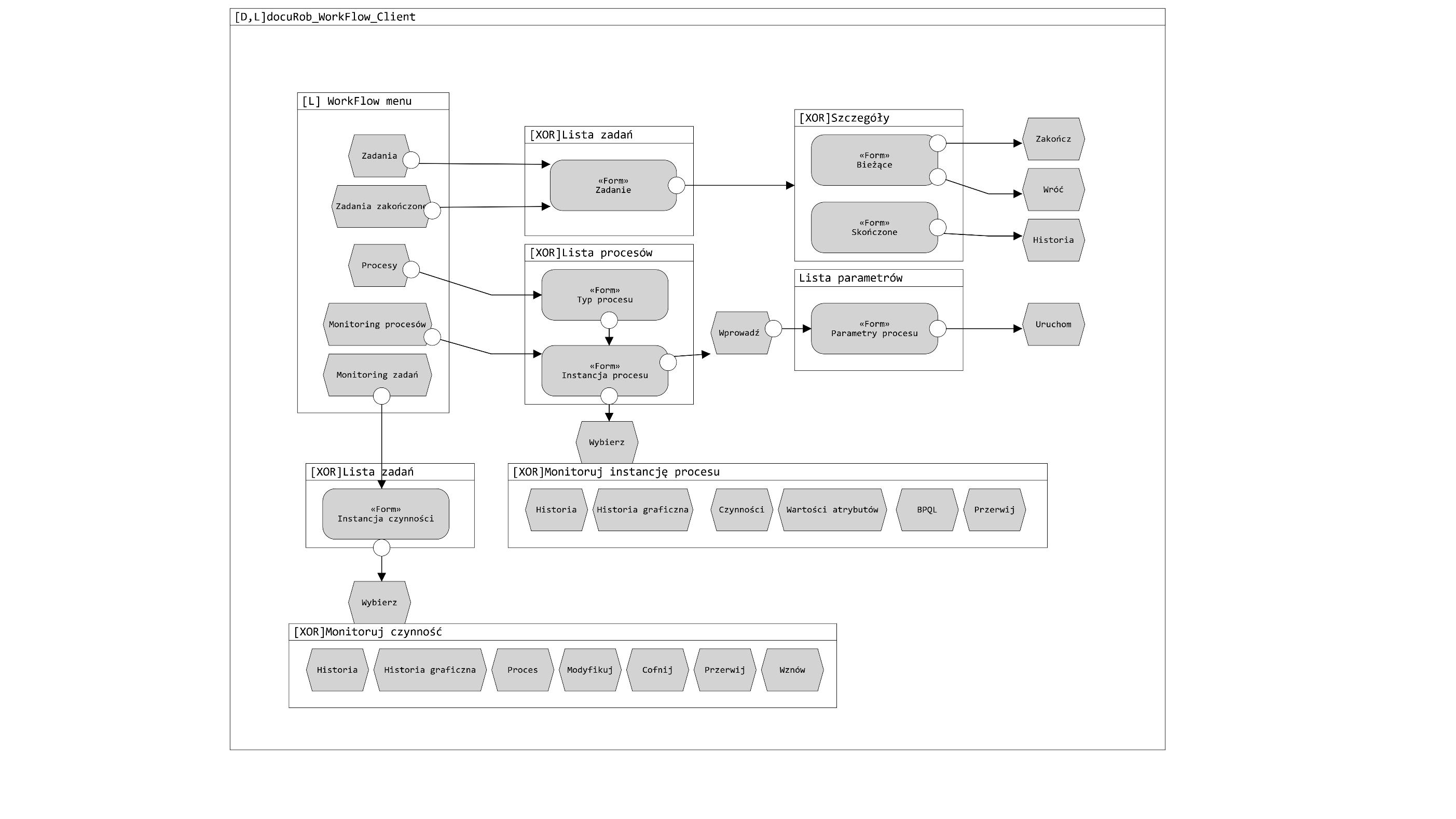
Figure 1. Navigation diagram in an Angular web application
docuRob® WorkFlow menu
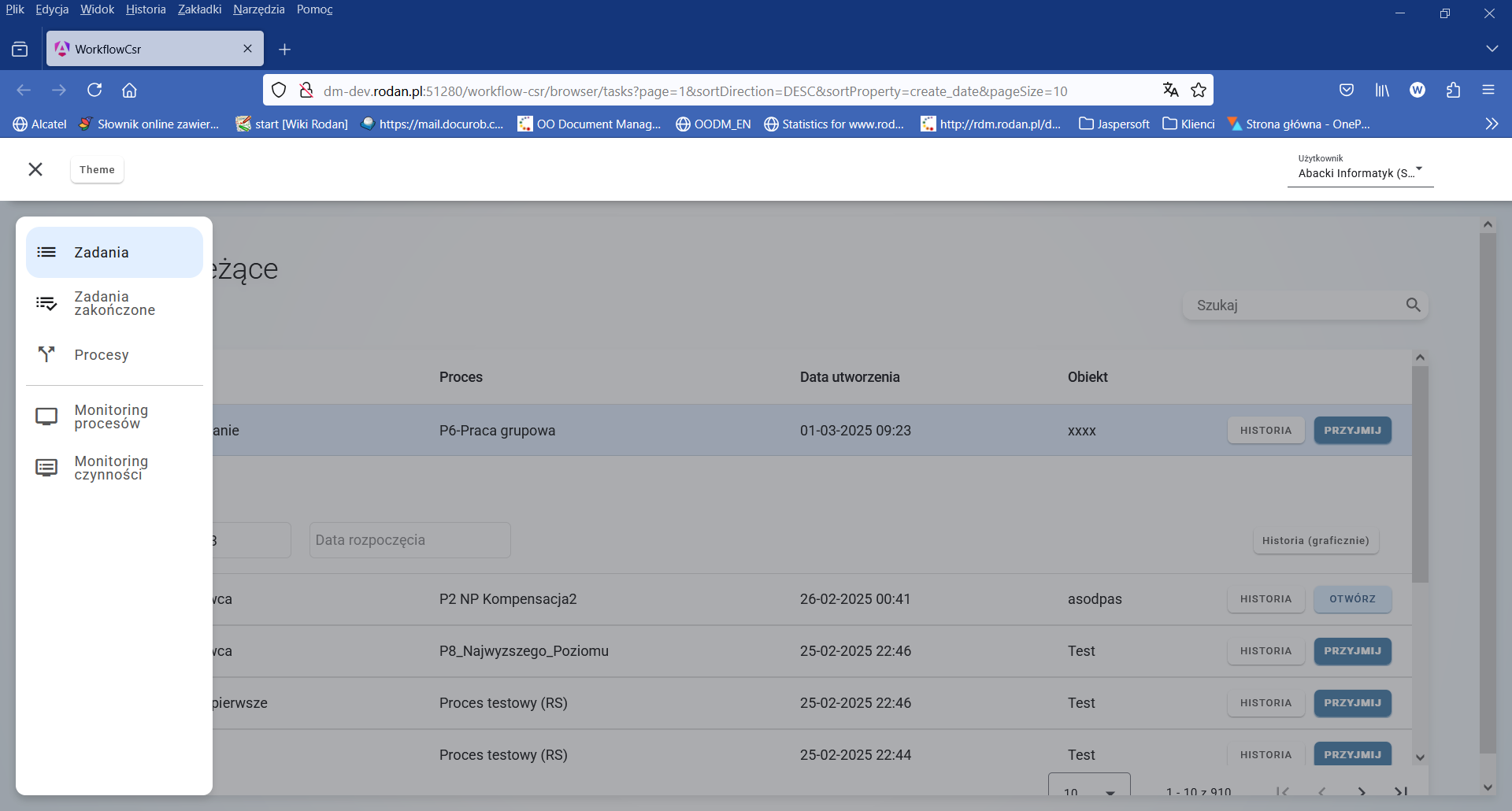
Figure 2. Modal WorkFlow menu window
Tasks
Tasks and Completed Tasks menu items respectively open access to two task lists, including current tasks that have been assigned to be performed by the logged-in user of the system, and completed tasks showing the history of work within the available processes . After selecting a task , the user gains access to the graphical interface of the task or to the application indicated in it , which provides the appropriate set of services.
The native graphical interface of the docuRob® WorkFlow platform are electronic forms created and maintained within the integrated docuRob®ObjectManager product . The task performer has at his disposal the services available within the interface, which allow him to end the task (End"), interrupt the task (Return ), and view the history of the execution of the process instance containing the task. The interrupted task remains on the list of current tasks , allowing him to return to its execution at any time.
The first row of the task list ( Figure 3 ) is expanded after clicking on this list item and allows direct access to the process execution history graph (Figure 4 ) displayed in a modal window or to the history process execution presented in tabular form. Additionally, task attributes such as description and creation and start dates are visible .
Completed tasks are displayed on a similar list, which differs only in the set of attributes. Instead of the start date, the task completion date is displayed . Within this task list, only the History service has been made available , which opens access to the tabular history of the process instance execution ( Figure 5 ).
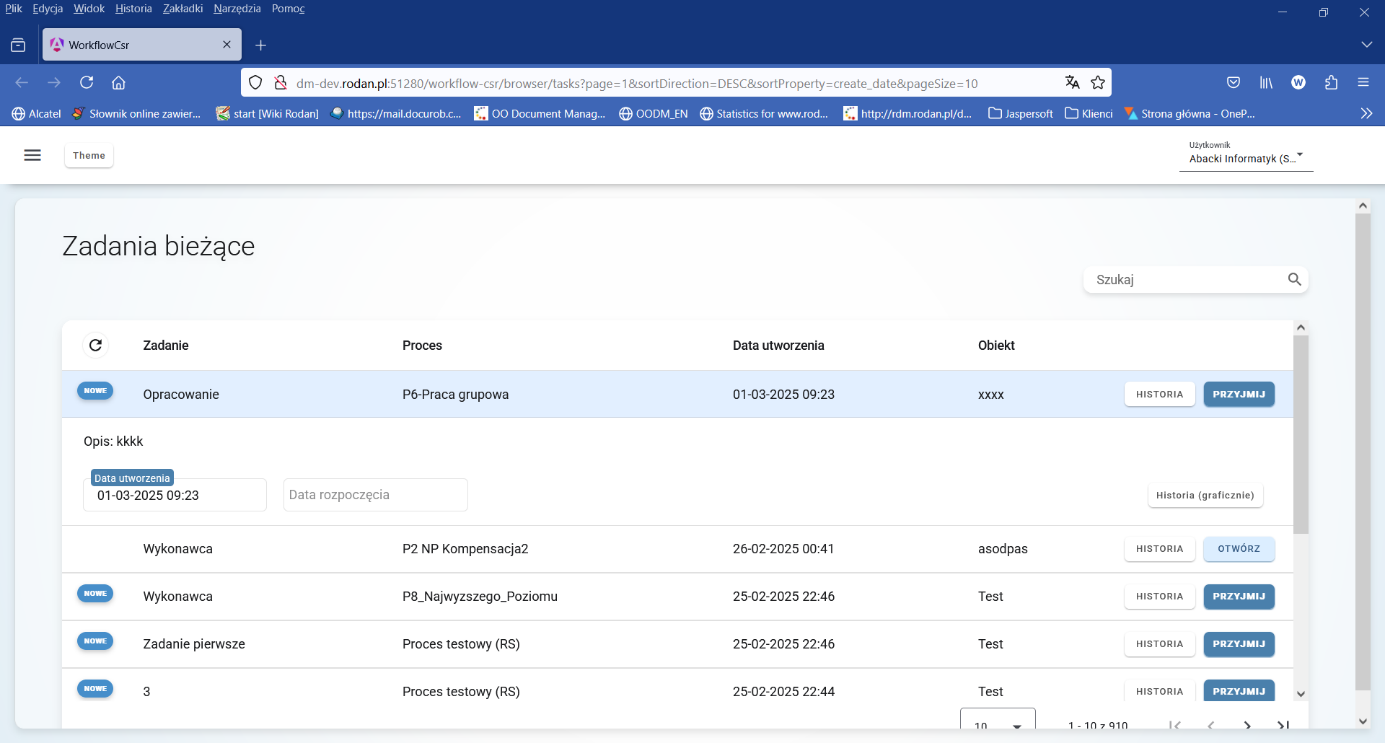
Figure 3. List of current tasks of the system user
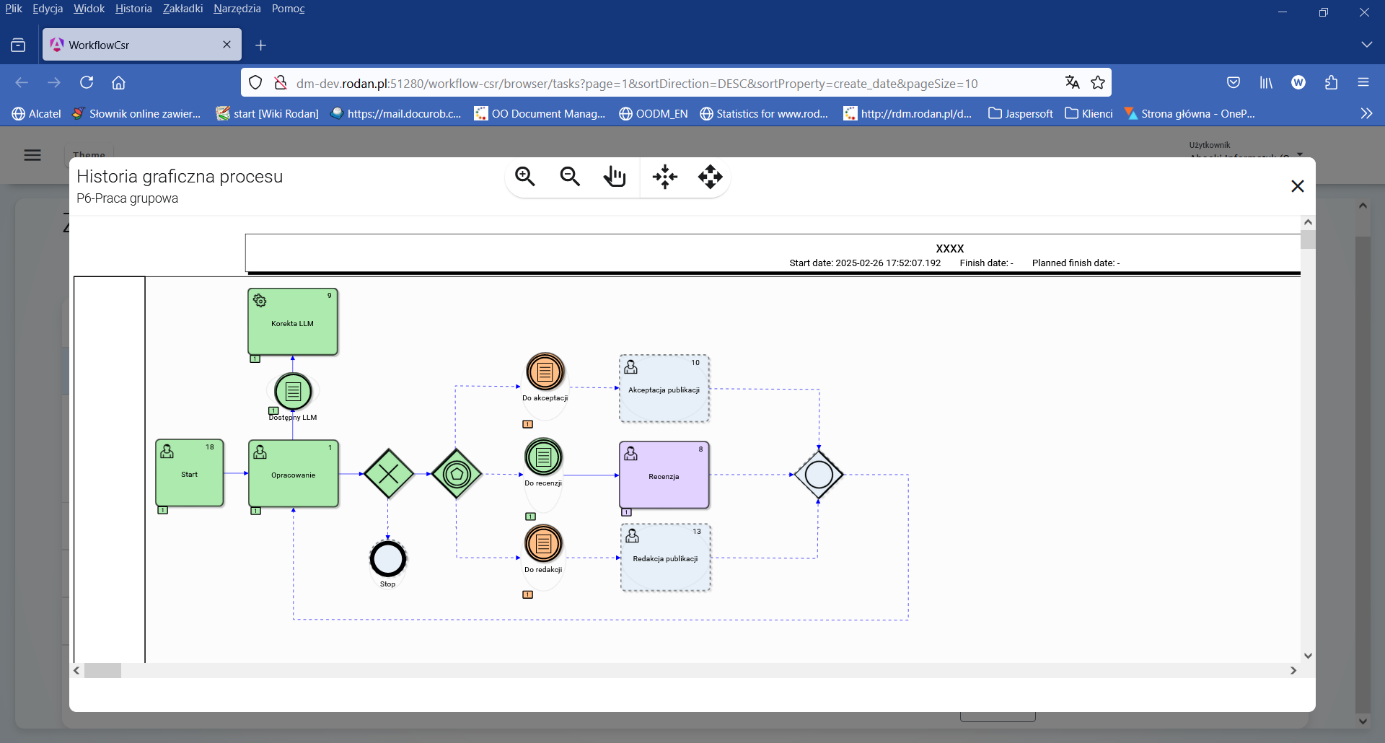
Figure 4. Process execution history graph
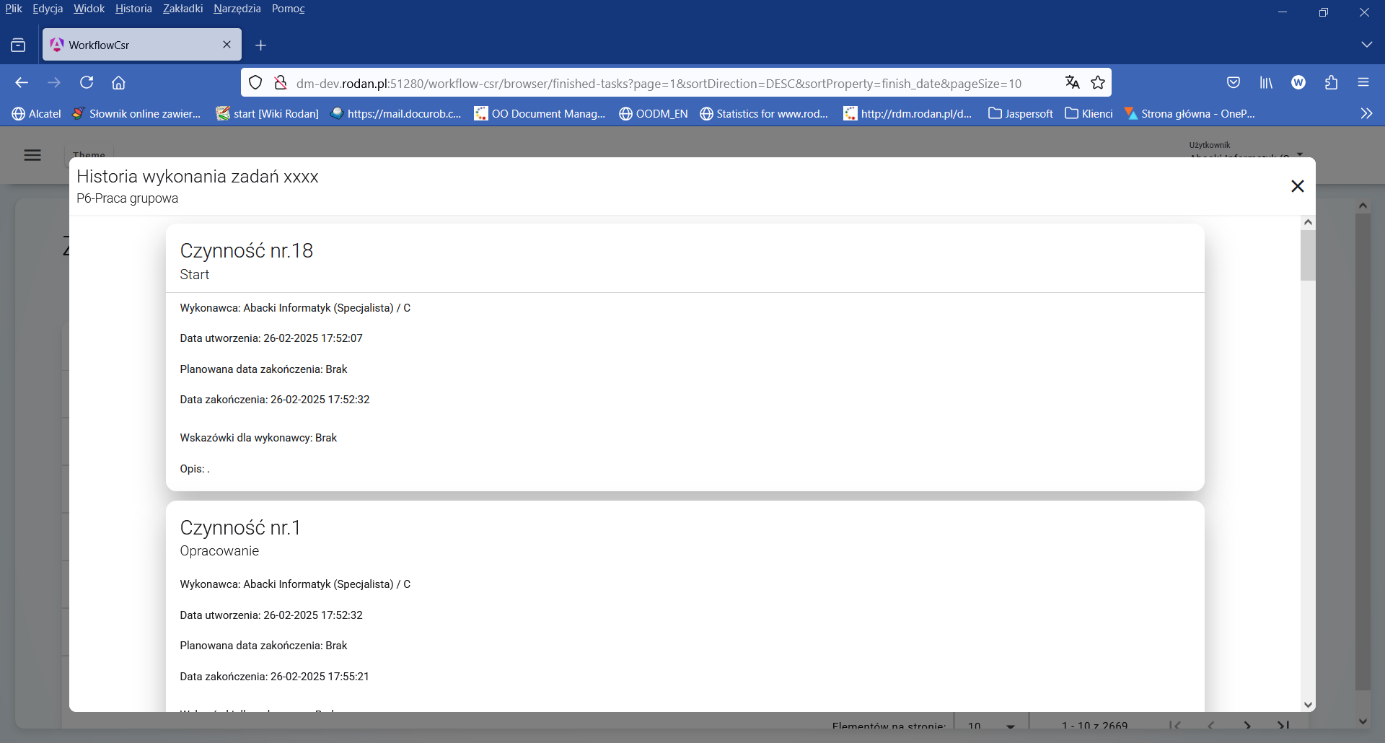
Figure 5. Tabular representation of the process execution history
Processes
The Processes item presents the types of processes ready to be run and it is used to initiate process instances by the logged-in user . This method of invocation is one of many ways of instantiating business processes available in the platform environment ( Figure 6 and 7 ). Regardless of the method of launch, all current process instances are visible to authorized users on the list available within the list of monitored processes.
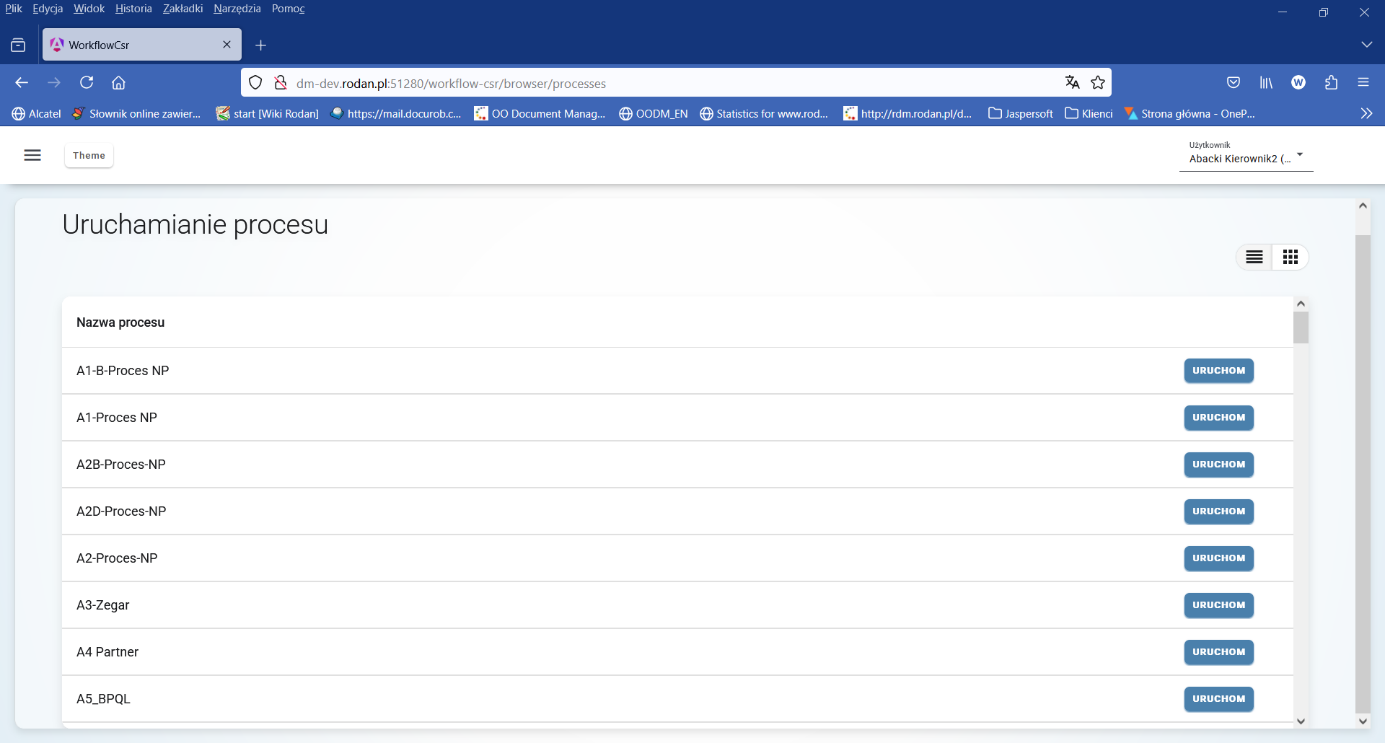
Figure 6. List of process types ready to run
The list of processes is also presented by a graphical interface, which is shown in Figure 7 . In the upper right corner of the list screen there are interface type selection fields.
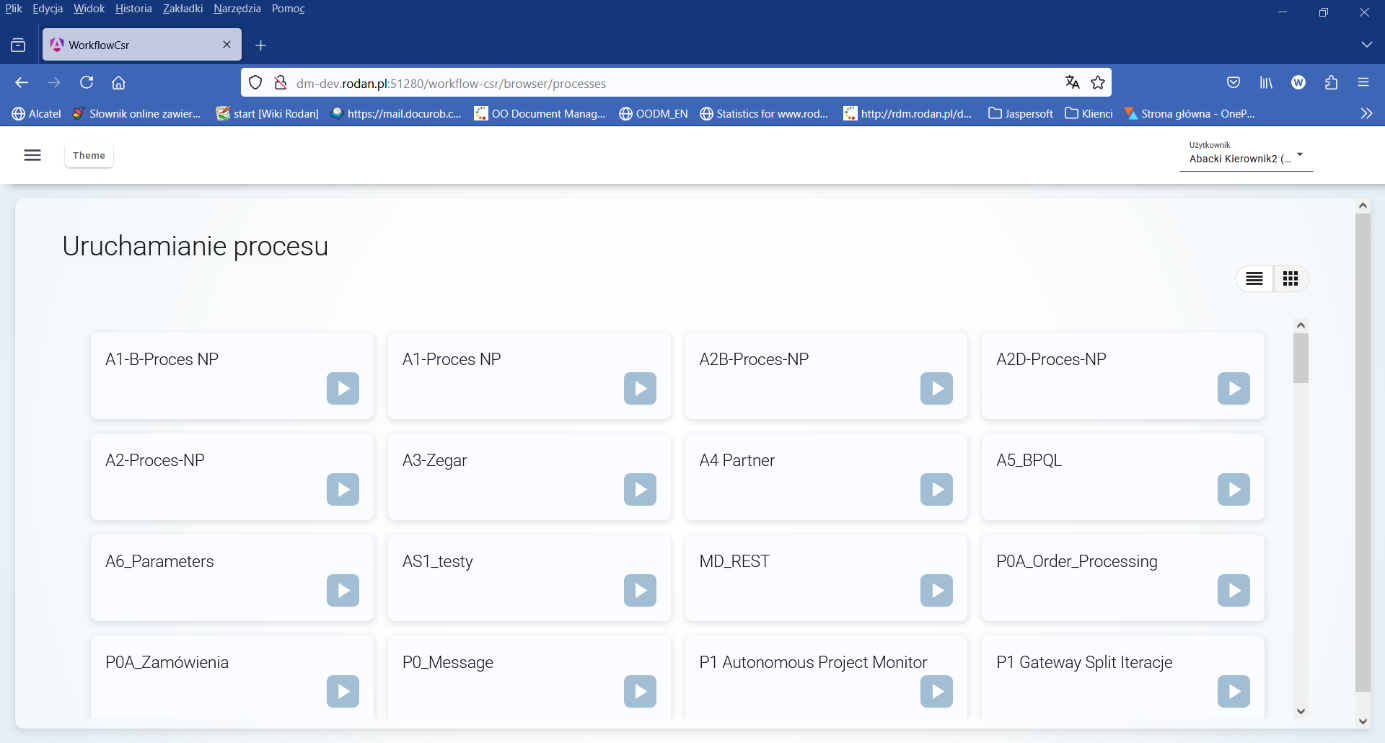
Figure 7. List of processes to run in the tiled interface
Creating an instance of the selected process type may require entering input parameters in addition to the mandatory object name and optional object description . The list of input parameters is created automatically based on the appropriate definitions of the process container data types , an example of which is shown in Figure 9 .
The object processed within the process can contain any files and an electronic form . In the case of the latter, the data fields contained in it usually serve as a source of values for the process input parameters. The process instance is executed by the Start service .
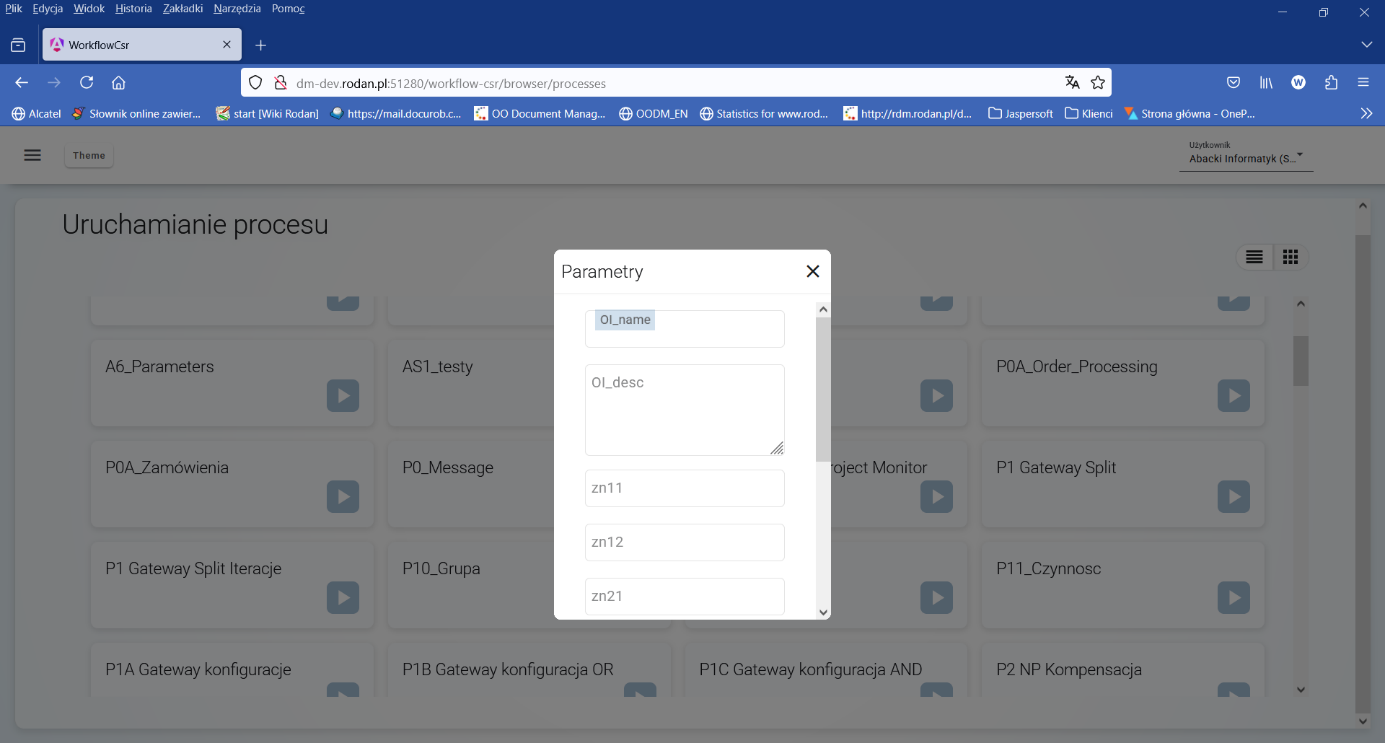
Figure 8. Modal list of process input parameters
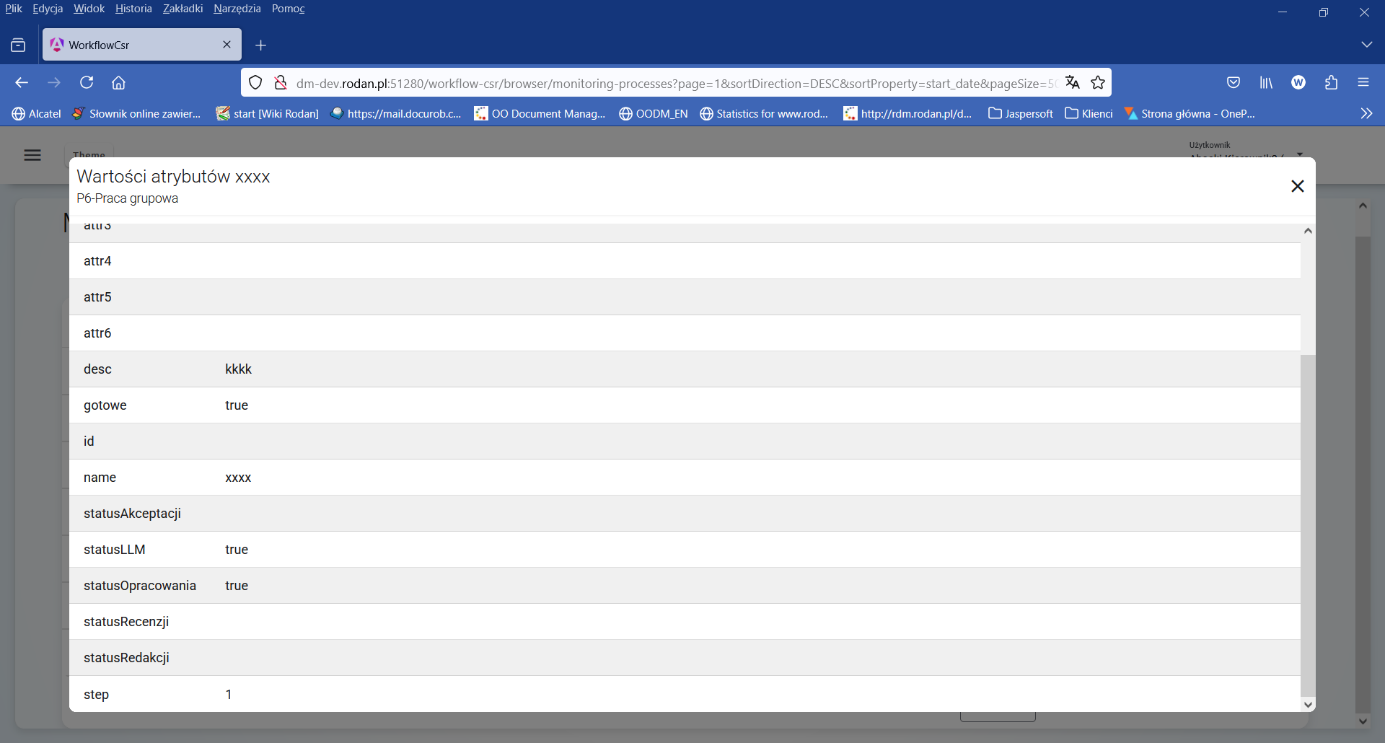
Figure 9. Example of a list of global variables for a process container
Process instance monitoring
Process instance monitoring services are typically available to system administrators and, within the appropriate process types, to their owners . The range of available services allows for tracking process processing and for necessary diagnostics and intervention in the event of exceptional situations. Process monitoring services are provided at the level of a process instance and for individual tasks performed in it .
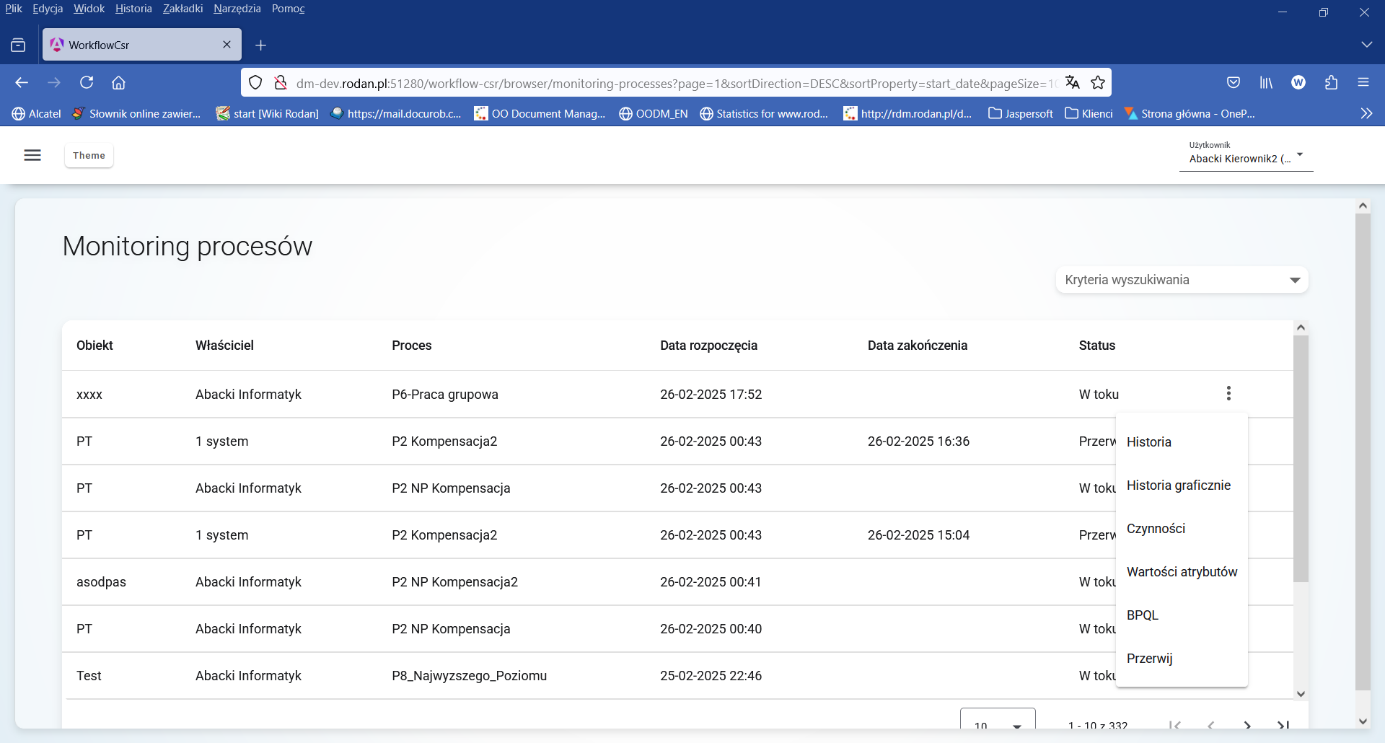
Figure 10. List of process instances from the monitoring services menu
Figure 11 shows the history graphs of the execution of related processes ( process and subprocess ) and the navigation between graphs. The red arrow in the details of the execution of the complex activity Subprocess, when clicked, starts the presentation of the subprocess graph . Returning to the higher level triggers clicking the arrow in the upper left corner of the screen.
Execution details show important time points of the task and its performer as well as progress status from creation through acceptance, execution and completion . Task status is additionally signaled by a color code according to the legend located in the upper right corner of the screen.
Because the process definition may contain loops, some activities are be performed multiple times. Information that a task has been performed more than once is presented by means of the insets located in the lower left corner of the activity symbol. Each inset has its own number (i.e. the number of the instance of the given activity).
A task can be performed by more than one person . Individual task instances are presented as insets in the upper left corner of the activity symbol. Clicking on a given inset displays information related to the execution of that instance. The current inset is marked in the same color as the rest of the task symbol .
Activities list shows completed or active tasks of a process while providing access to monitoring services at the level of this process .
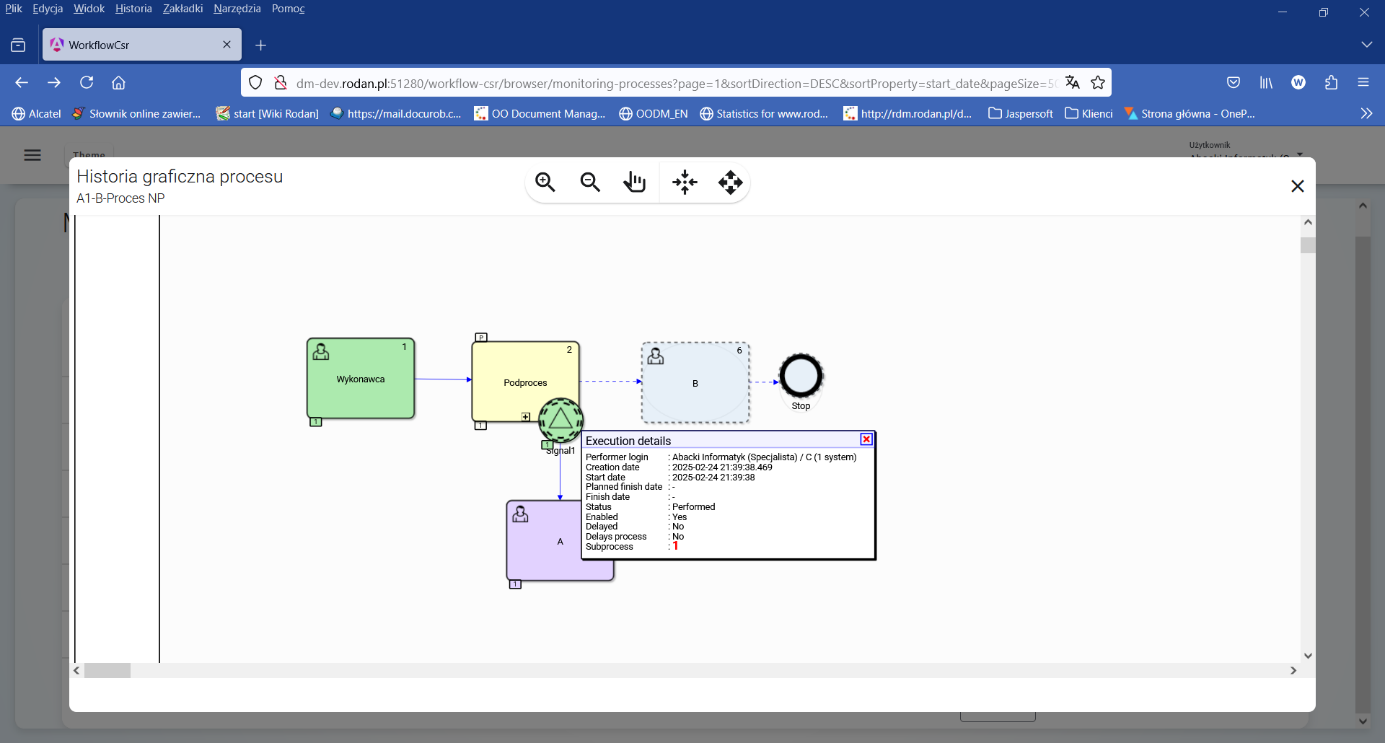
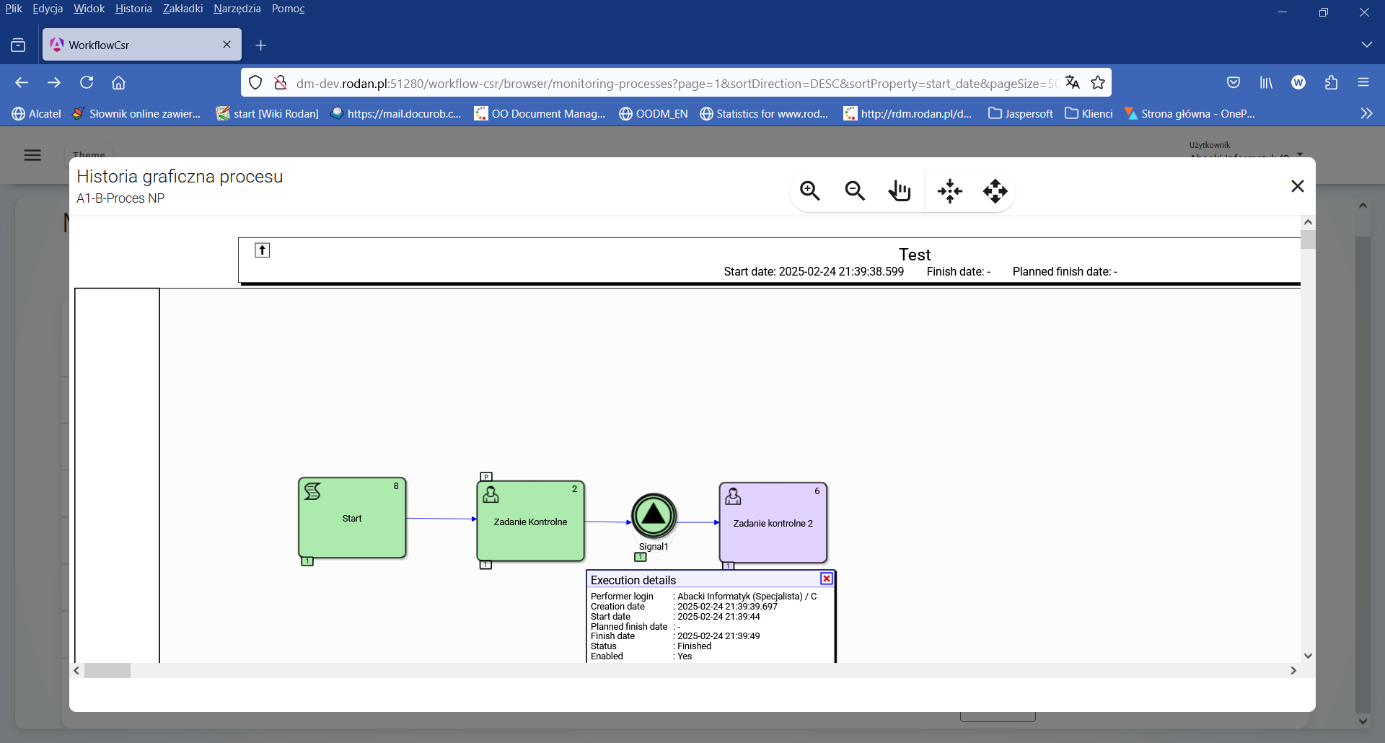
Figure 11. Execution history graph of related process instances
The list of monitored process instances can be searched based on a variety of criteria ( Figure 12 ) related to the process attributes, its status, or important time points in the instance life cycle.
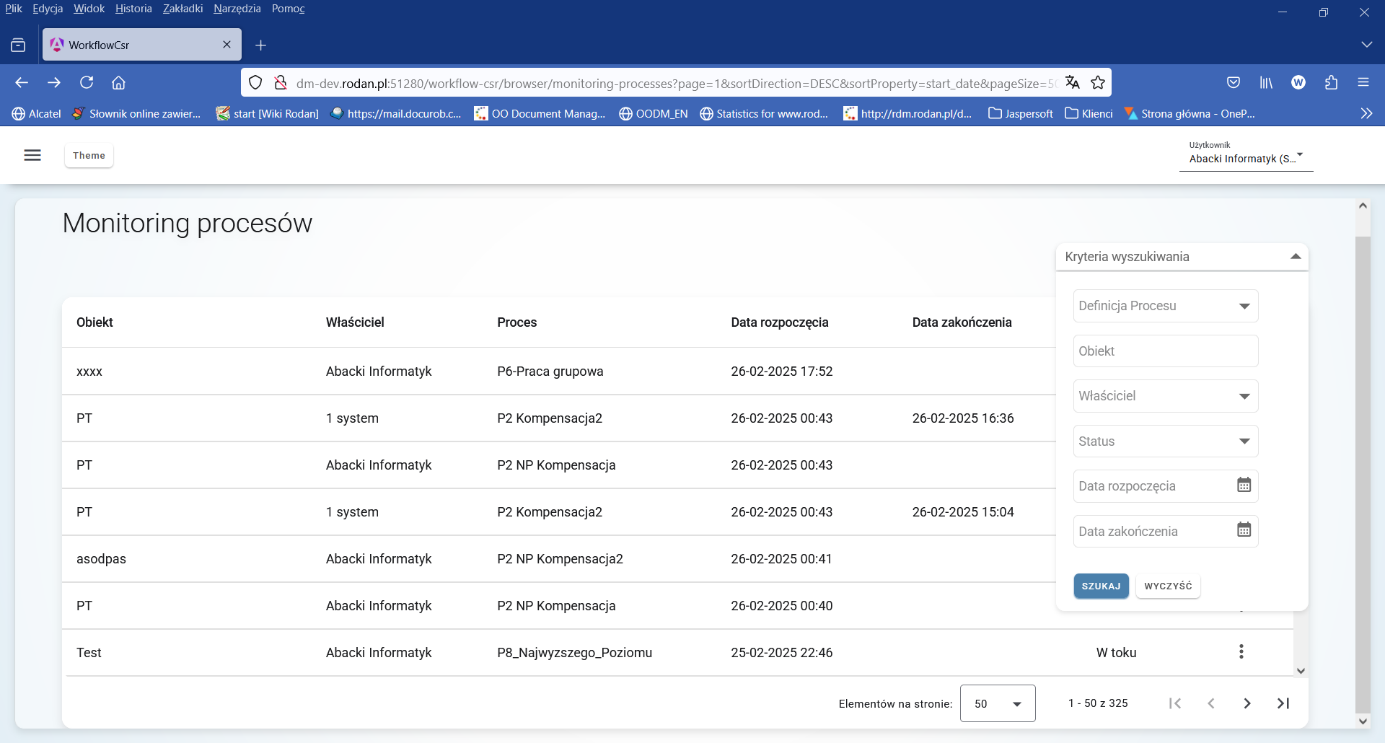
Figure 12. List of monitored processes with search criteria
Task monitoring
The task list ( Figure 13) is generated for all non-archived activities handled within a given docuRob® WorkFlow platform installation*.* Completed instances of processes and the activities are automatically archived according to the frequency specified in the platform installation parameters. Within this category, the following two categories are available:
- Active – includes all currently executed and prepared to execute instances of activities (with status in progress or new ). Within this category, tasks are further categorized by name.
- Inactive – includes tasks that have already been completed (with a status of “ completed ” or “ interrupted ”). Similar to the previous category, further categorization within this category is based on the names of the activities
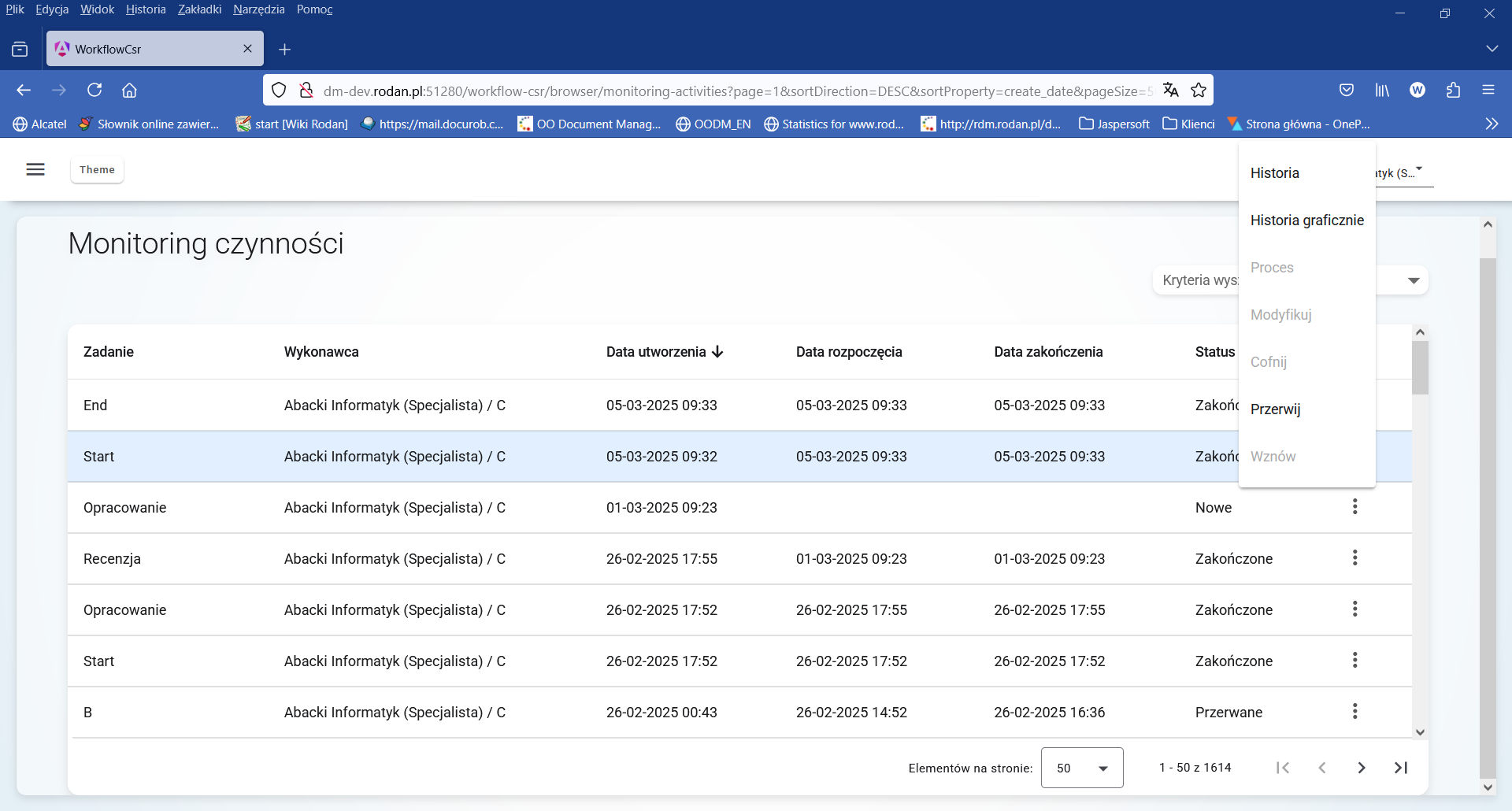
Figure 13. Task list from the monitoring services menu
Services used to monitor and administer activity instances are available from the activity instance list view . A service is invoked by indicating the selected activity instance and then clicking the button with the service name . The availability of services depends on the permissions of the logged-in user.
Most of the services operate on a single instance of an activity. The exceptions to this rule are the " undo " and " abort " services available for a group of task instances . Calling a service for a group of activity instances is done by selecting more than one instance of an activity from the list in a manner analogous to selecting a single instance of an activity
Modify service allows you to change the maximum deadline for an activity and change the person performing the activity. Modification is only available for activities that are being performed (status in progress ") or are ready for performance (status new).
Undo service causes the process execution to be rolled back to the activity (task) instance preceding the selected task . The activity instance being rolled back is set to the " interrupted " state, while the preceding activity is reopened (new status). All tasks that were created from the activity instance preceding the undone activity , i.e. are derived from the predecessor of the undone activity, are set to the interrupted state.
Undo service is available only for activity instances (tasks) being performed (status " in progress ") or prepared for execution (status " new ") and can be performed simultaneously for multiple activity instances.
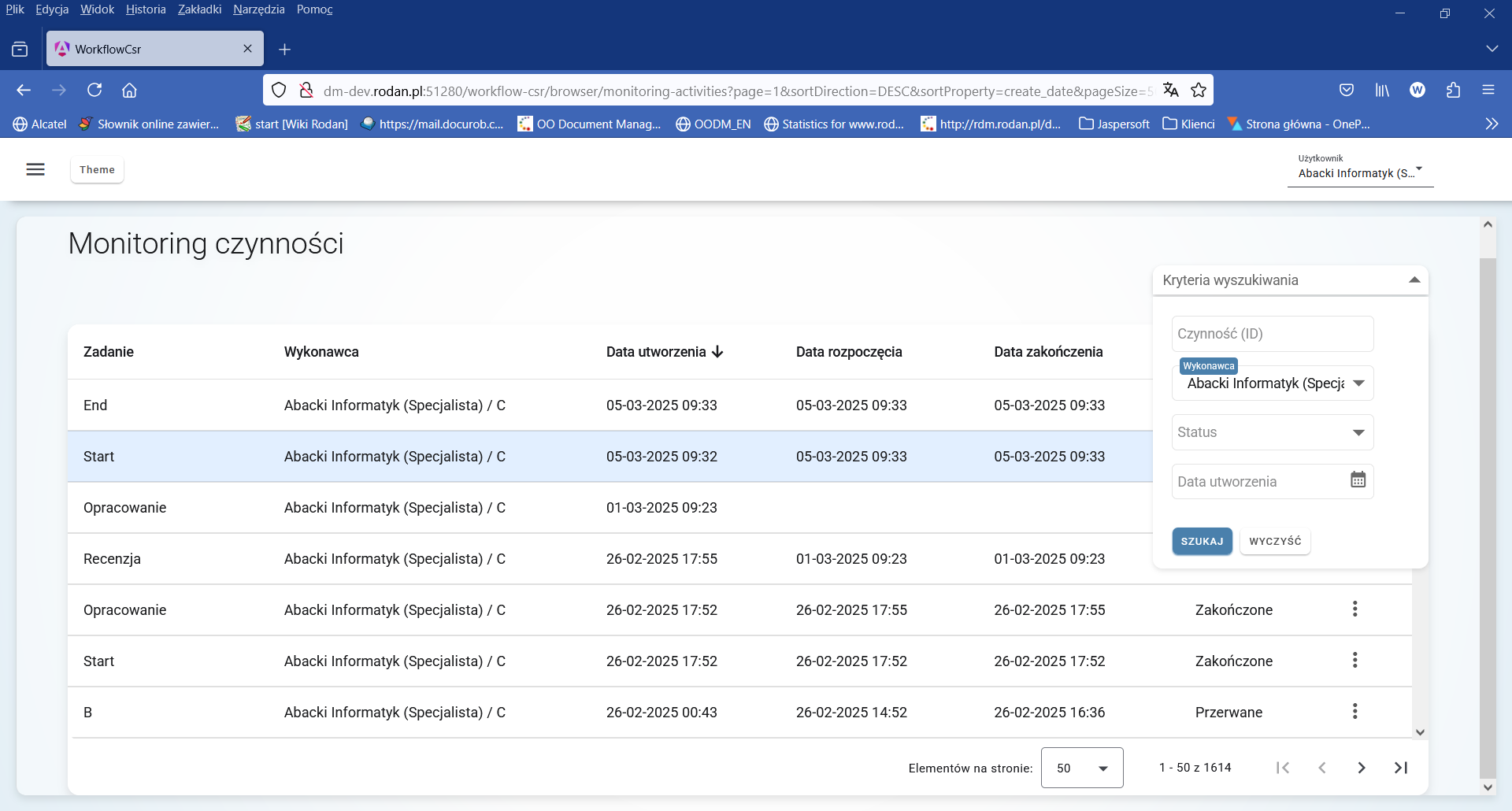
Figure 14. Task list with search criteria
Abort service is used to interrupt a given activity instance. This service can be executed for task instances that have not yet been completed and can be executed simultaneously for multiple instances.
It is possible to obtain it from the instance level information about the process instance to which a given activity instance belongs. To do this, use the Process service . The process instance is presented using a standard user interface element, i.e. a list.
As a result of an exception condition (e.g. application invocation error due to lack of availability), the execution of the activity instance is suspended ( the activity instance receives the status Suspended, which blocks further execution of the current path in the process). The Resume service allows the re-execution of the activity instance. If the error occurs again, the activity instance is rolled back to the Suspended state, otherwise the current process path is continued. The task list can be searched based on criteria according to the search criteria menu ( Figure 14 ) displayed in the list.
The BPQL expression evaluator ( Figure 15 ) supports, among other things, quick testing of processes (e.g. changing attribute values) via the dynamic BPQL expression evaluation service directly from the process instance list level . Access to the service requires selecting the process instance in the list (the process must be currently executed) and call the BPQL service . As a result, we access the interface in which we can run BPQL expressions. NOTE. Any changes to process attributes are permanent within the current process instance .
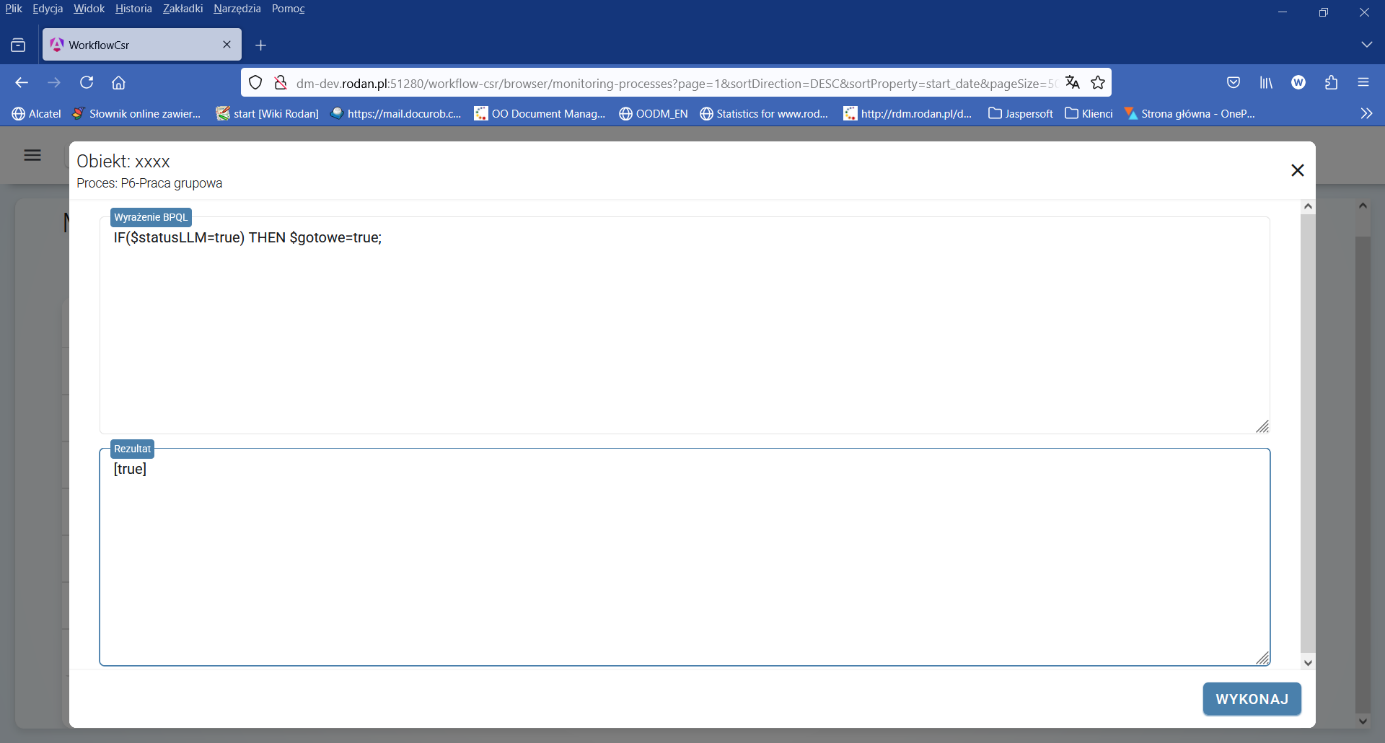
Figure 15. BPQL Expression Evaluator
The Abort service interrupts the currently executing process instance. All process activities that are in the Performed or Suspended state are interrupted. This service is available only for those processes that have not yet been completed (with the status: In progress) and can be performed simultaneously for multiple process instances.
API docuRob® WorkFlow
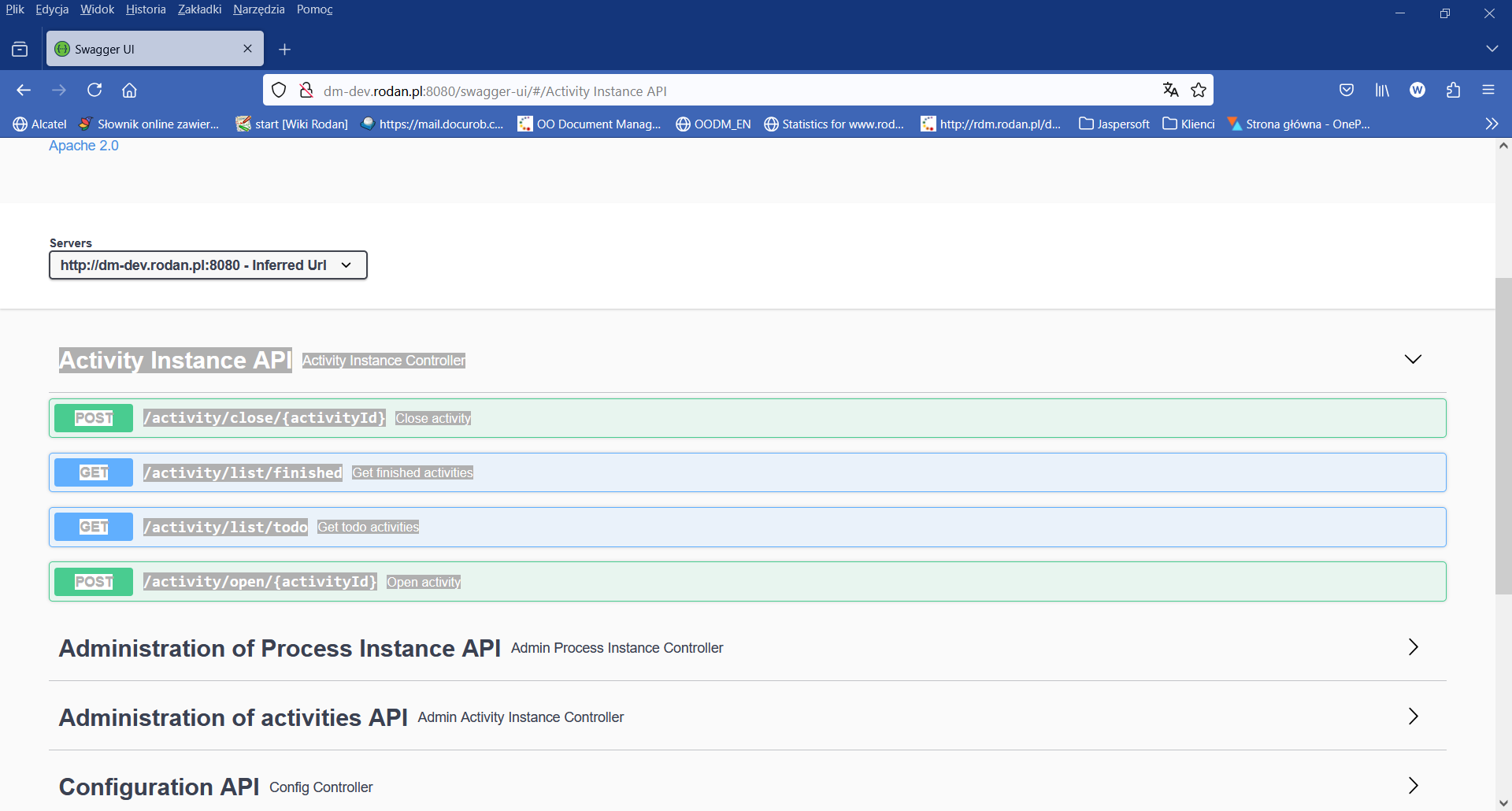
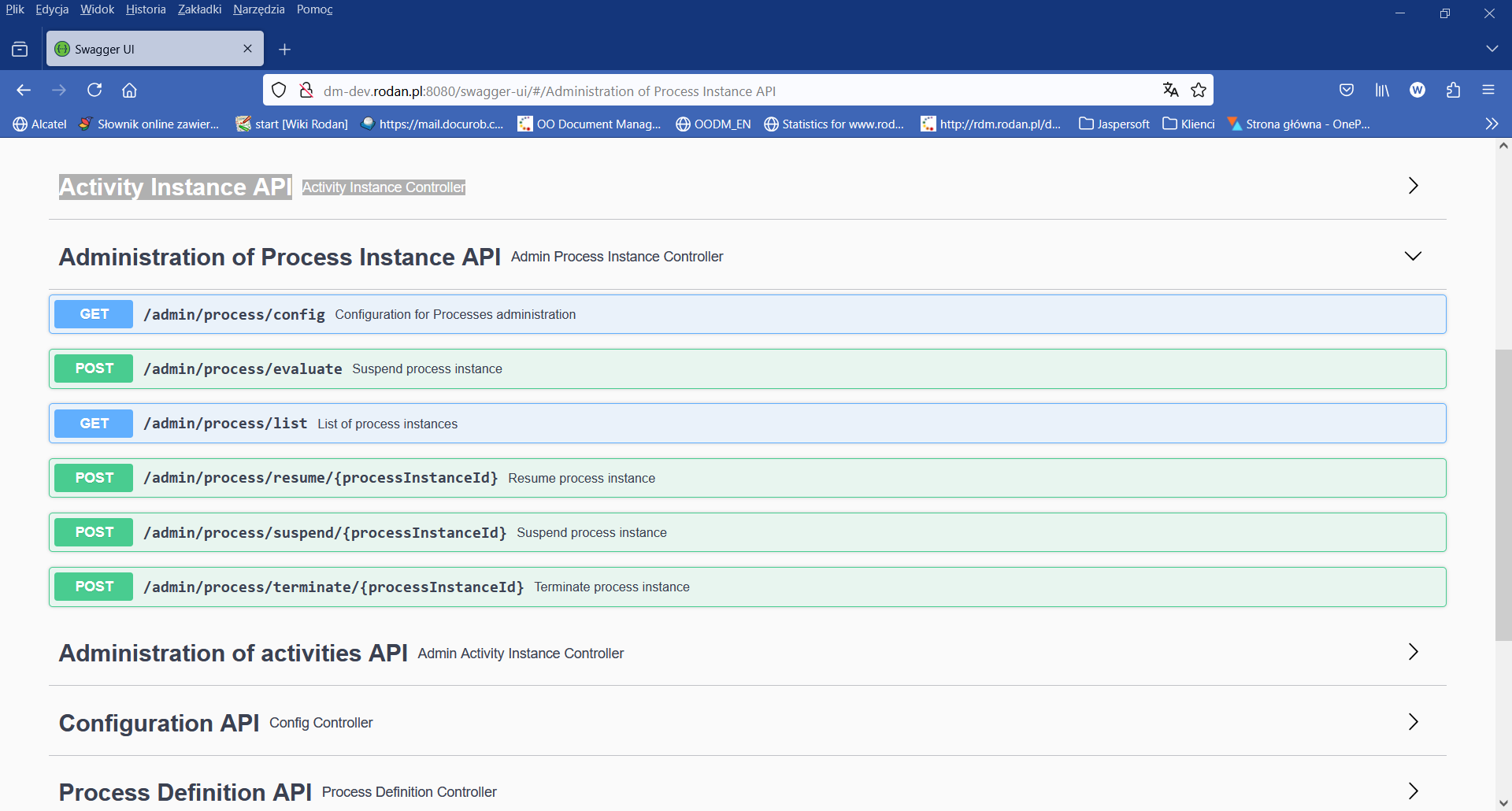
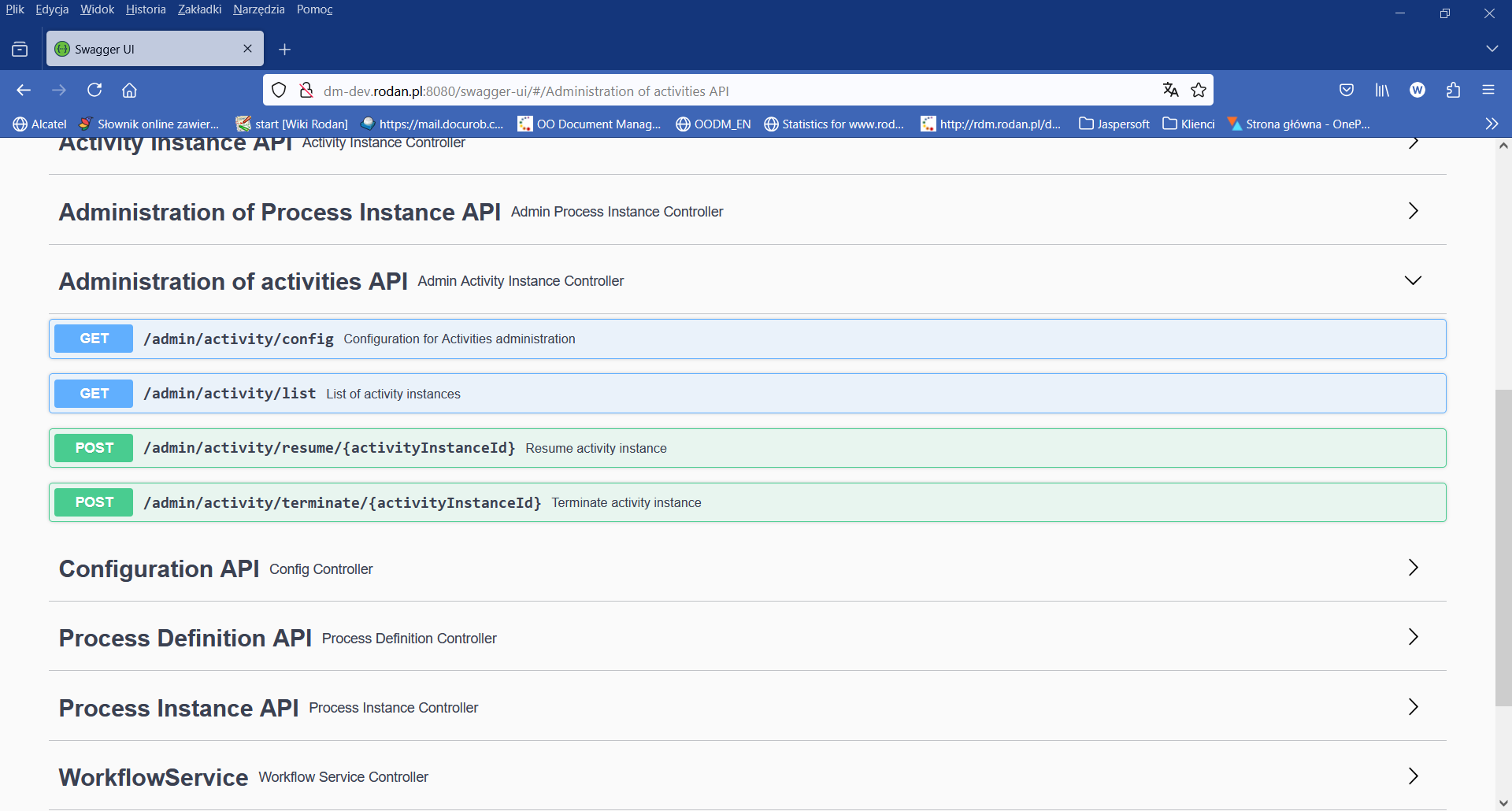
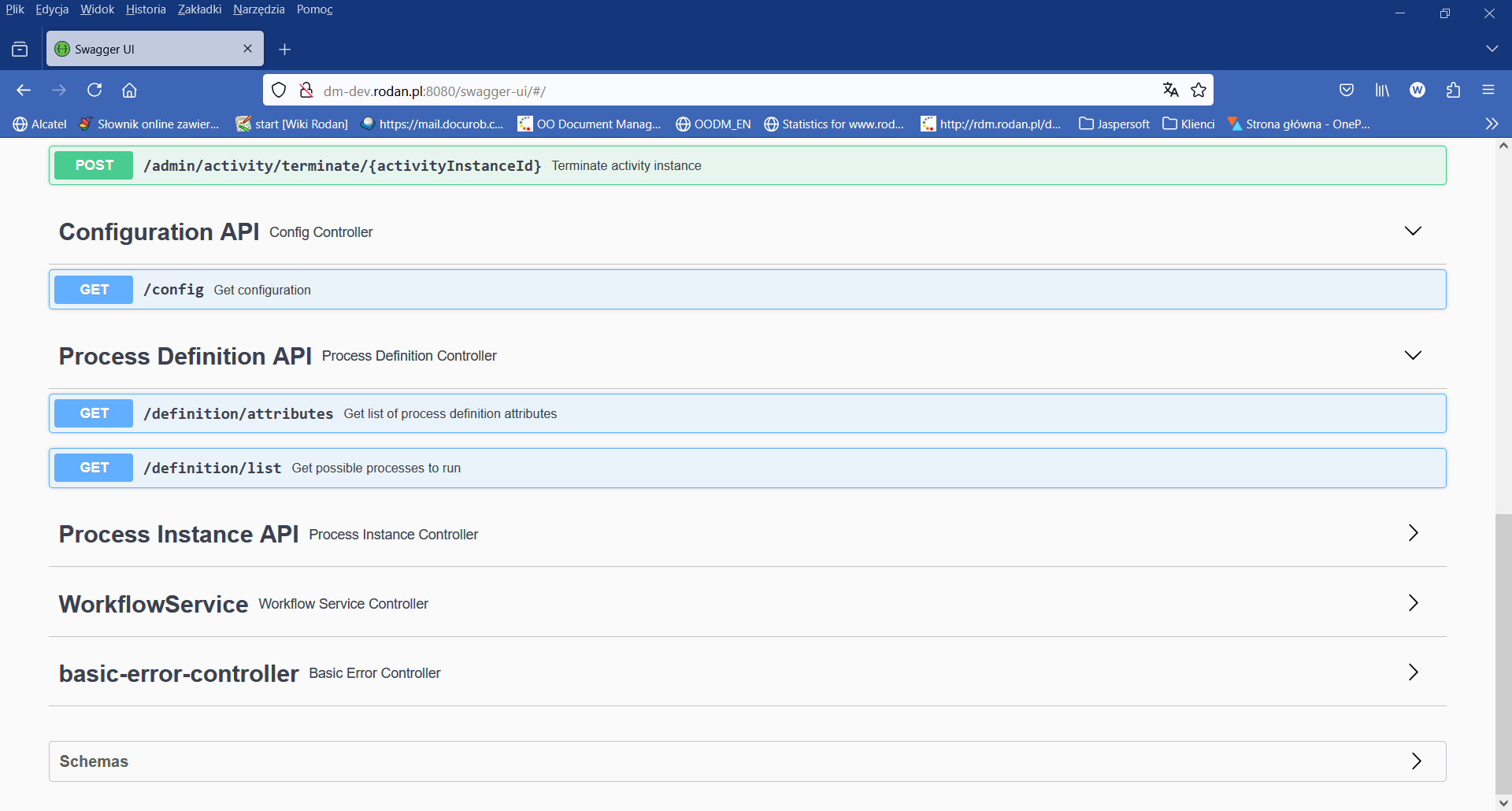
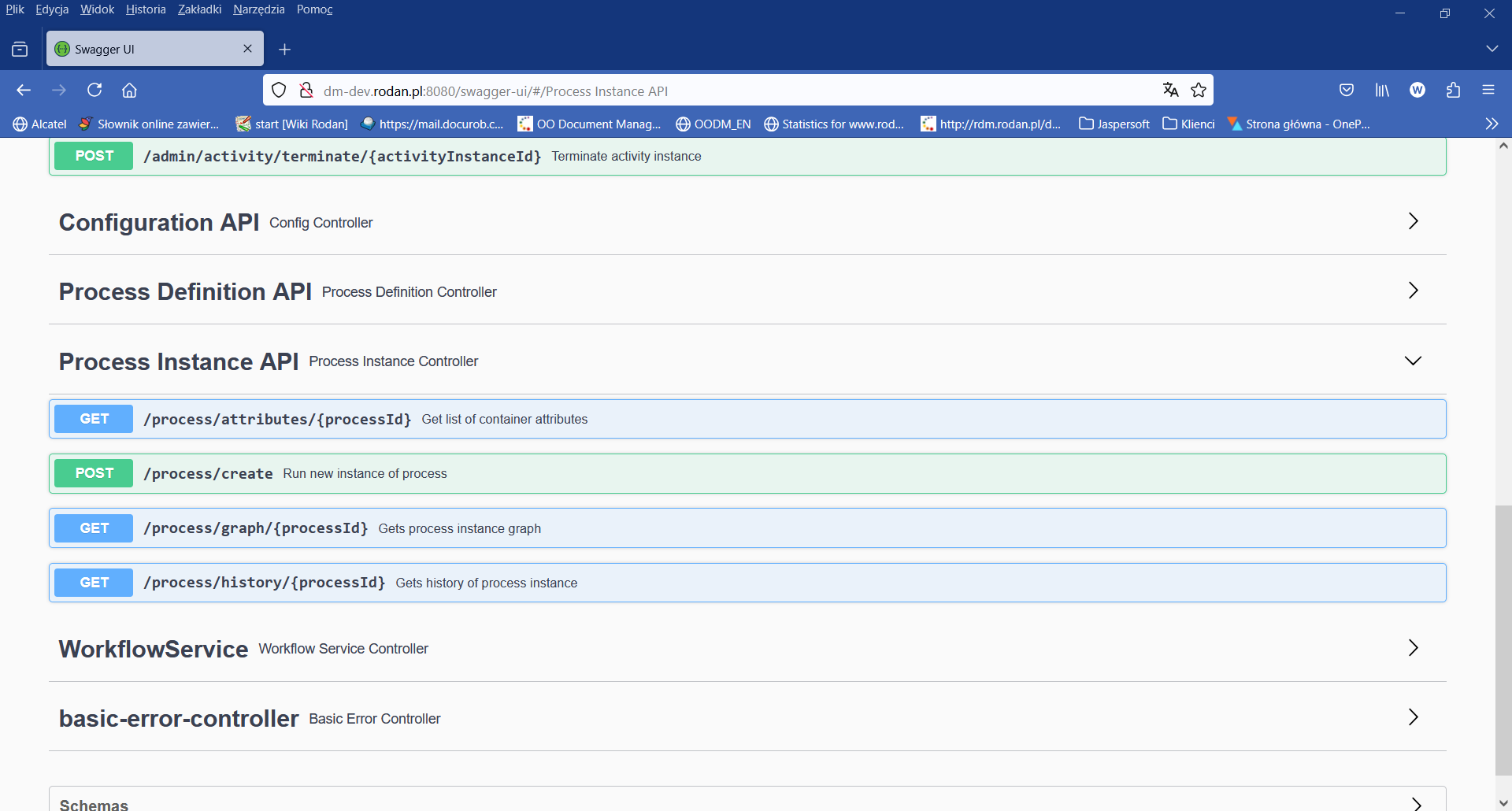
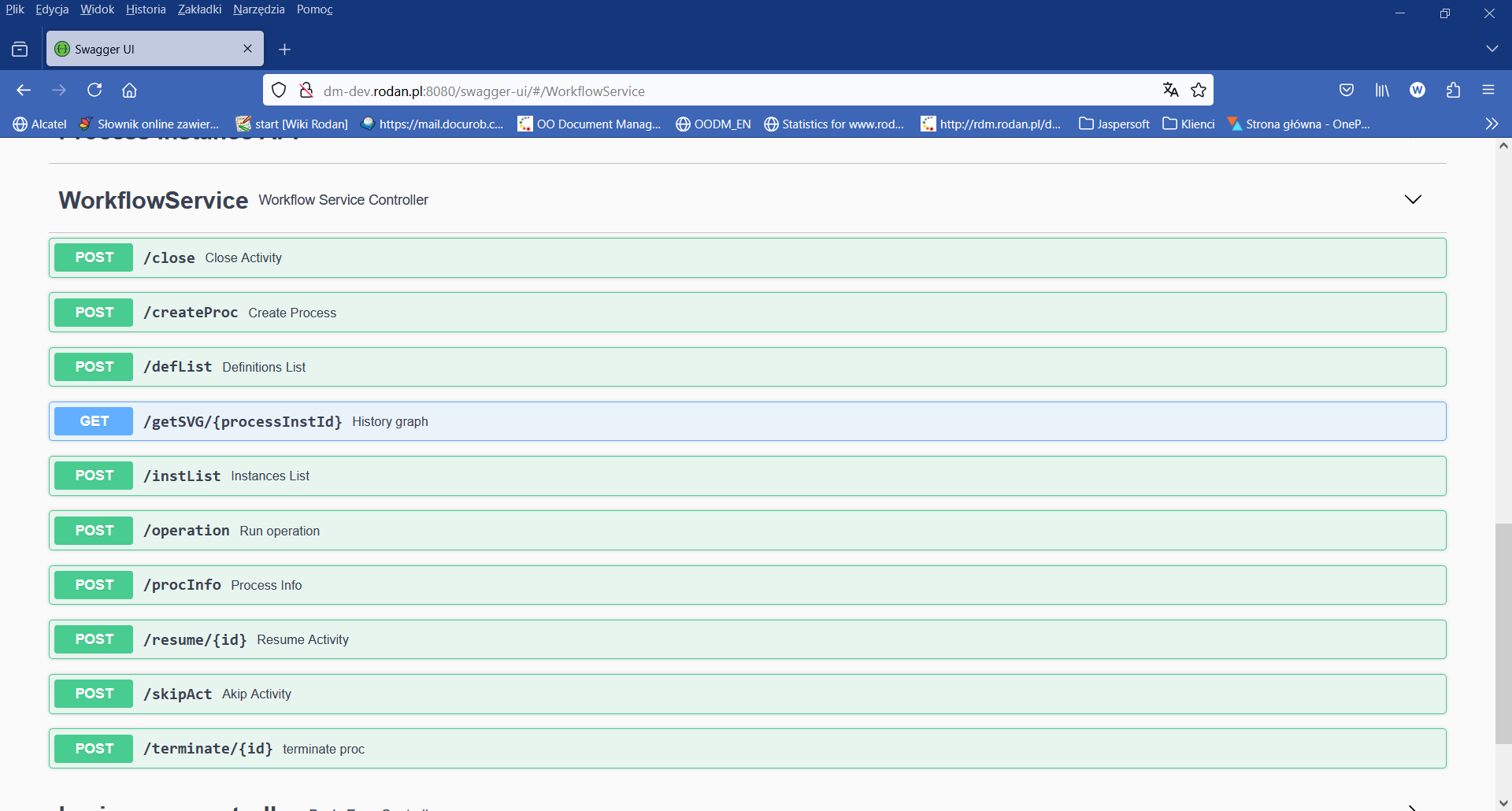
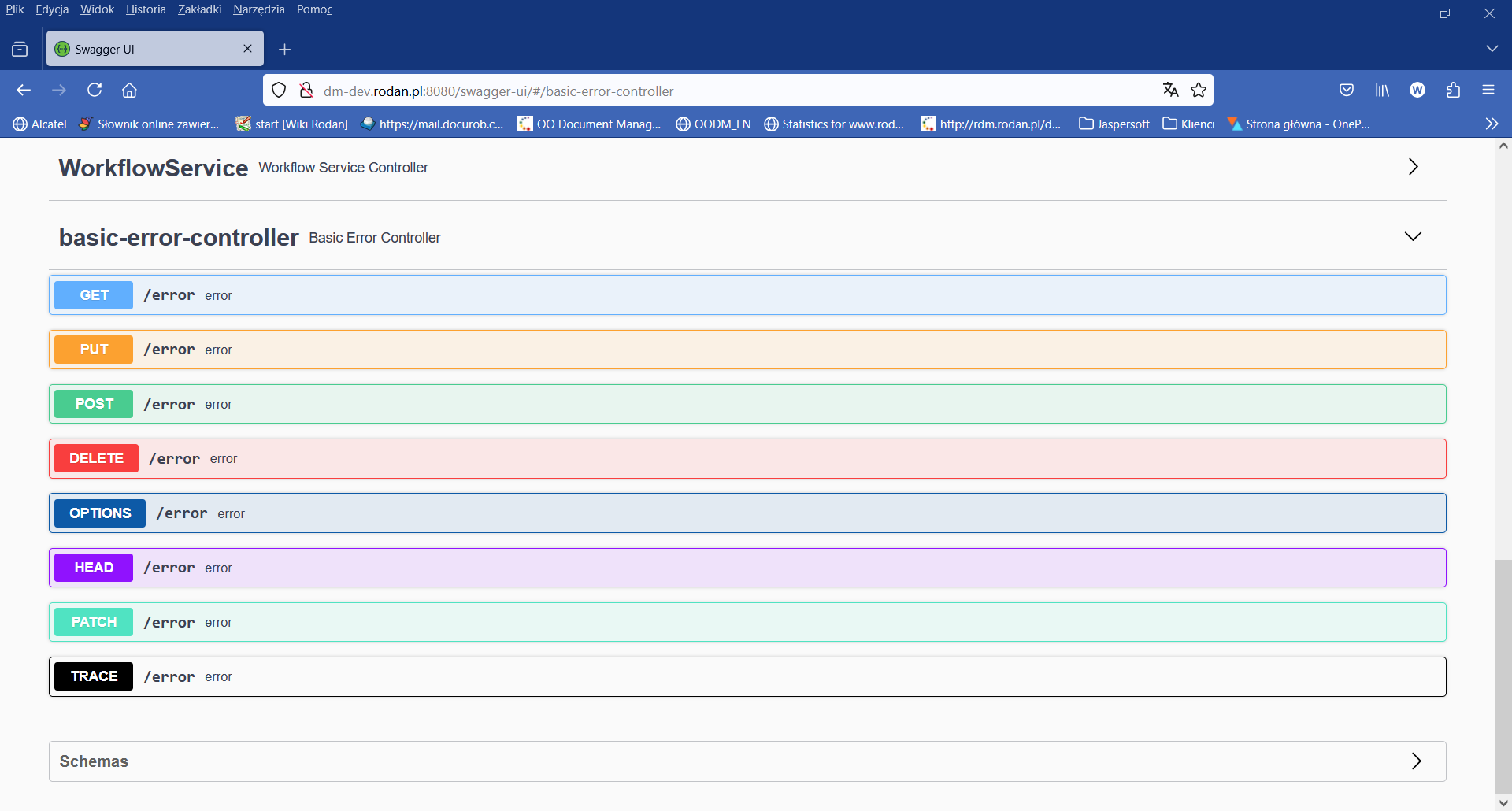
The Rest API of the docuRob ® WorkFlow platform comprises all the services necessary to implement and deploy the applications built by Developers with the use of the system.. An example of the range of functional capabilities available for application developers is the platform's web client discussed above .
New applications that work with the docuRob®WorkFlow platform can leverage any software environment that enables the use of the Rest API.